Apache JMeter is an open source Java desktop application, built to verify functional behavior, perform load tests, and measure performance.
Some of JMeter points of strength are mentioned here below:
It ships with an easy-to-use GUI;
It allows to set up multiple thread groups, different parallelism and request count, to ramp up the load;
It can use CSV files to generate semi-randomized requests;
It can execute parameterized tests;
It reports results in a simple table;
It uses assertions for checking test results;
It can be executed in batch.
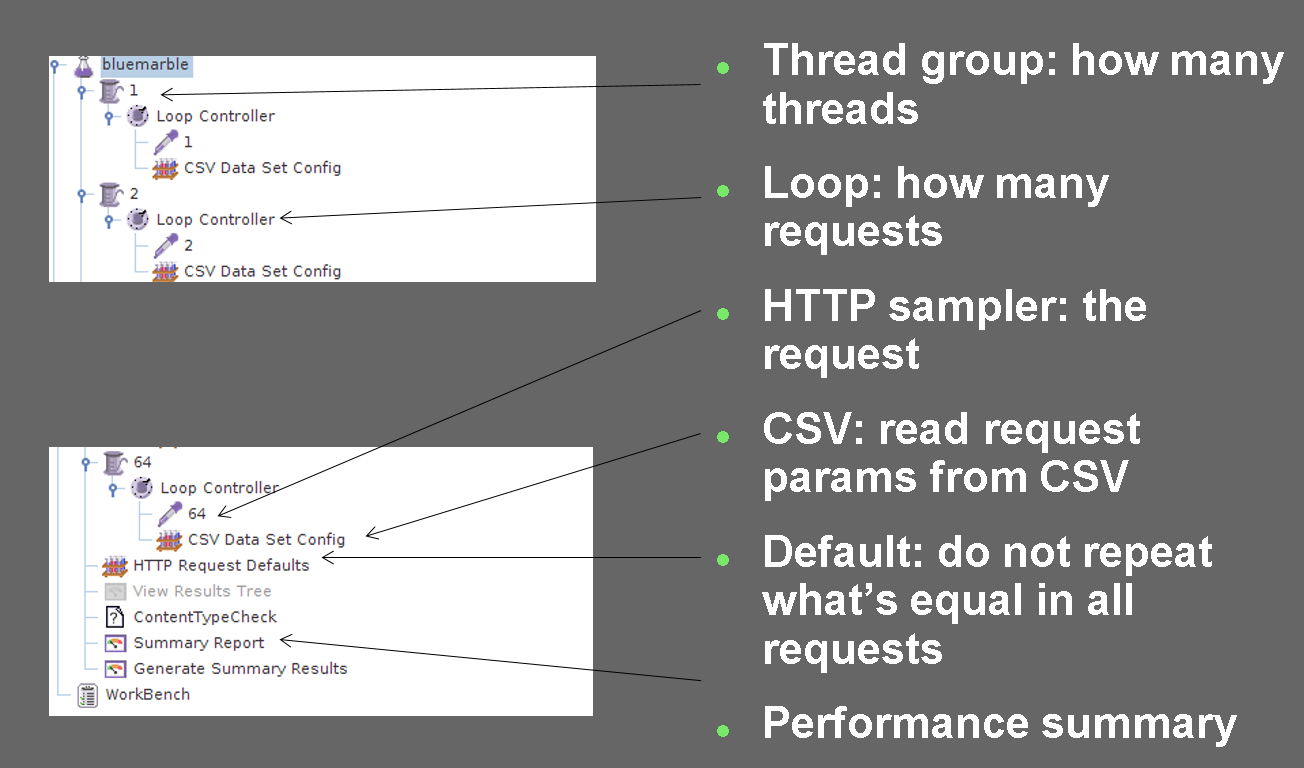
In the picture below we have summarised the basic concepts of a JMeter test which we are going to build right afterwards.
This section explains how to run performance tests using JMeter in order to evaluate the GeoServer performances when serving WMS requests.
The performance test aims to stress the server and evaluates the response time and throughput with an increasing number of simulated users
sending concurrent requests to the server.
Note
Ideally, to avoid adding extra load to the server JMeter should run on a different machine.
Warning
If you have performed the exercises in the security section, please go back to the layer and
service security pages and open access to everybody, on all data and all services, before performing
the exercises in this section
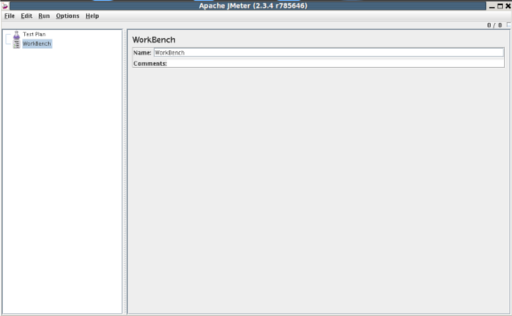
From the training root, on the command line, run jmeter.bat (or jmeter.sh if you’re on Linux) to start JMeter:
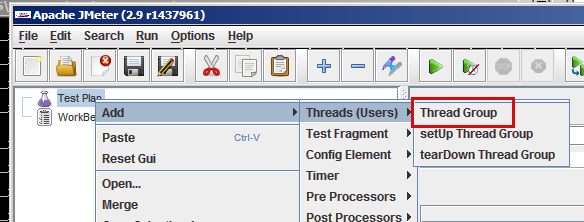
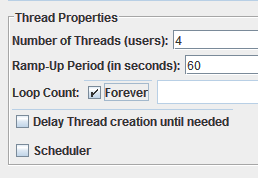
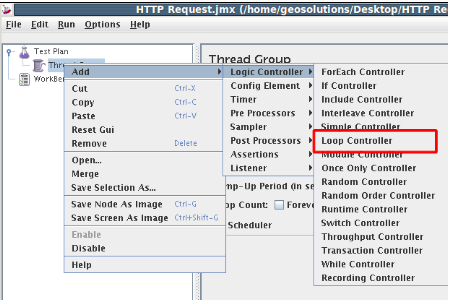
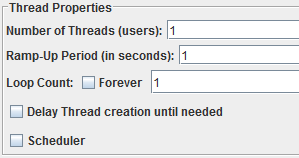
In the ThreadGroup panel set the number of thread for the test to 4 (this represents the number of simultaneous requests that are made to GeoServer) and the ramp-up period to 60. Also, chek Infinite on the Loop Count field.
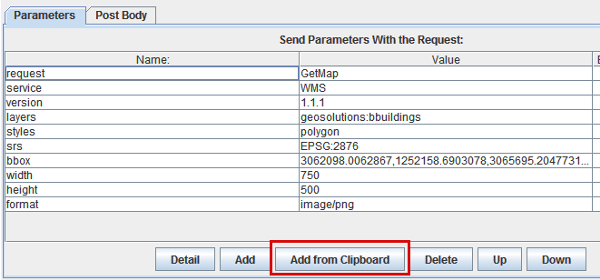
From the training data dir root, open the data/jmeter_data/jmeter_request_params.txt, select and copy its contents in the clipboard, then click “Add from Clipboard” in the “HTTP request” panel to setup a sample GetMap request:
This chapter explains how to create a custom randomized Multiscale test with a set of multiple concurrent threads.
In the example before, we ran a test on a layer always requesting the same bounding box and image size.
Now we should set up a more sophisticated test asking for different bounding boxes and resolutions, i.e. a multiscale test. Multiscale testing is
useful because it stresses GeoServer requesting new data each time, mimicking real usage conditions and providing better testing for eventual SLD scale
dependencies. With JMeter we can execute the test by passing a CSV file containing multiple randomized bounding boxes and image dimensions.
In the first paragraph we are going to describe how to generate a CSV file for randomized requests at different scales. In the second one is shown how to configure a new JMeter test
with multiple simultaneous threads.
wms_request.py is a python script which generates randomized requests at different bounding box and resolutions. The parameters are described in the following table:
Parameter
Description
count
Indicates the number of requests to generate
region
Indicates the maximum bounding box of each request
minres/maxres
Indicates the minimum and maximum value for the Pixel Size to request (Typically it should be at least the minimum resolution)
minsize/maxsize
Indicates the minimum and maximum dimensions of the requested image (Typically it should be at least as big as the tile size)
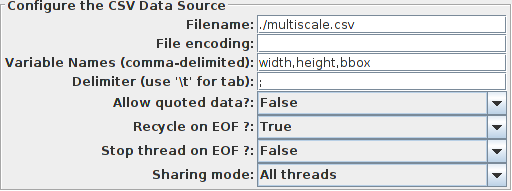
The CSV file is structured following the rule $width;$height;$bbox.
For example 290;444;-105.5904,39.910198,-105.48776,40.067338 indicates a request of size 290x444 and Bounding box [-105.5904,39.910198,-105.48776,40.067338].
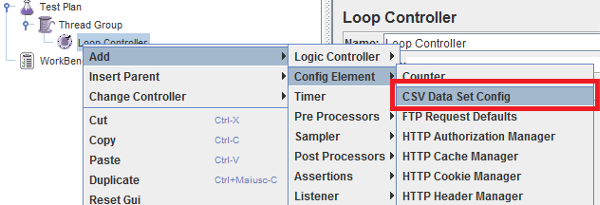
JMeter must be configured for parsing the CSV file correctly by using the CSVDataSetConfig element.
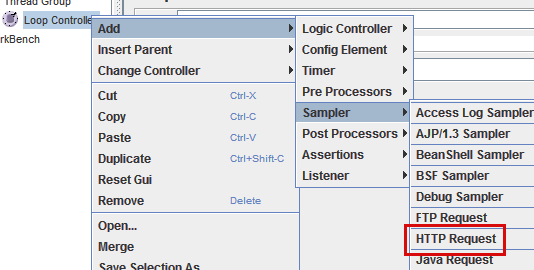
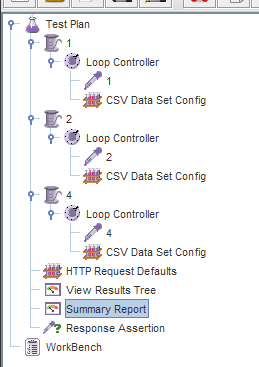
Right click the loop controller and choose “Copy”, then right click the other thread groups (one by one) and choose “paste” to get a full copy of the
controller, HTTP sampler and CSV confiuration. Adjust each “HTTP request” node name to match the thread group name (1, 2 and 4)
Configure the Loop Controller along the following schema:
Thread Group
1
Loop Controller –> Loop Count
100
Thread Group
2
Loop Controller –> Loop Count
50
Thread Group
4
Loop Controller –> Loop Count
50
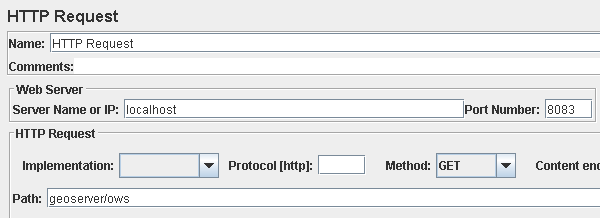
From the TestPlan tree node add an HTTP Request Defaults element (Config Element -> HTTP Request Defaults) and enter the following basic configuration:
From the training data dir root, open the data/jmeter_data/jmeter_request_params_2.txt, select and copy its contents in the clipboard, then click Add from Clipboard in the HTTP request panel to set up a sample GetMap request:
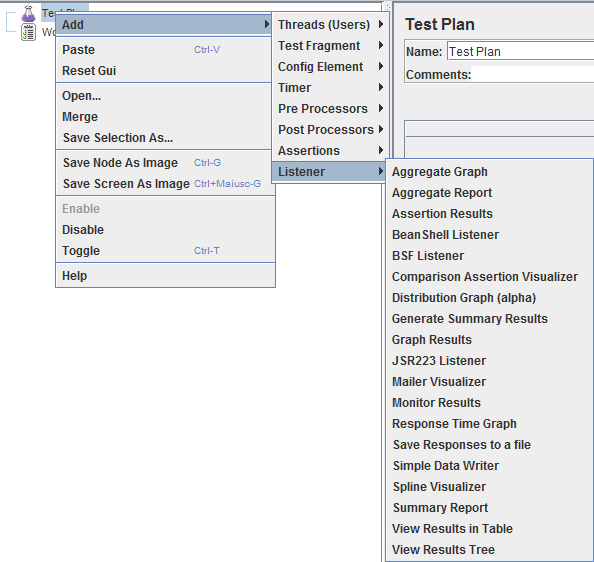
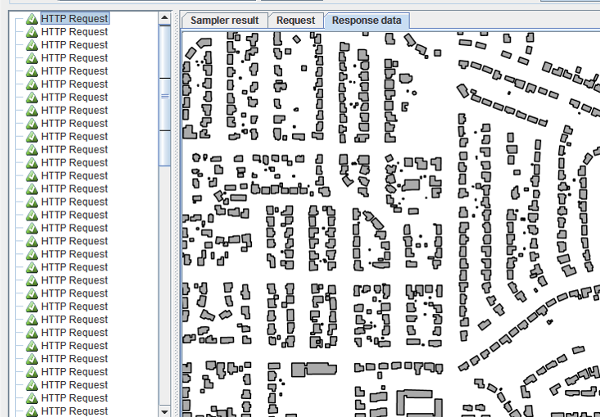
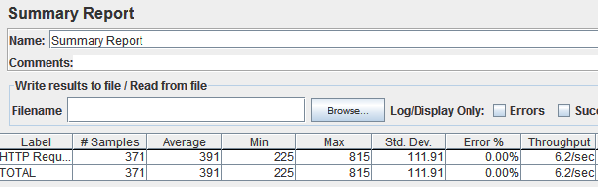
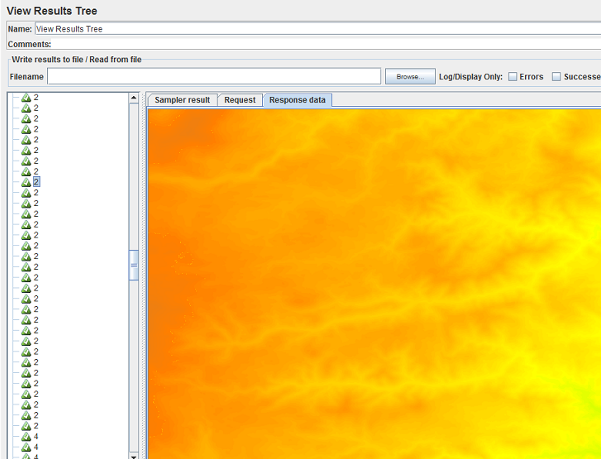
Add the following listeners by right clicking on TestPlan tree node: View results Tree and Summary Report
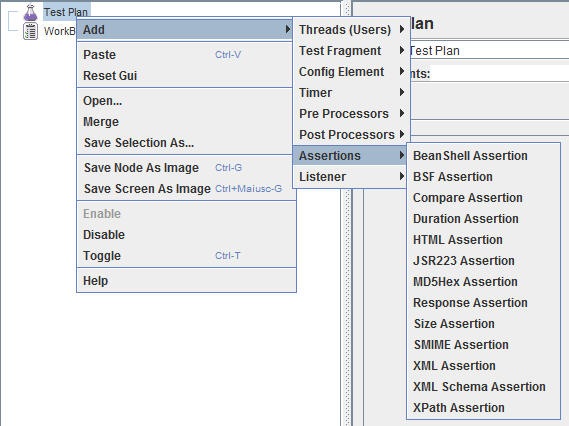
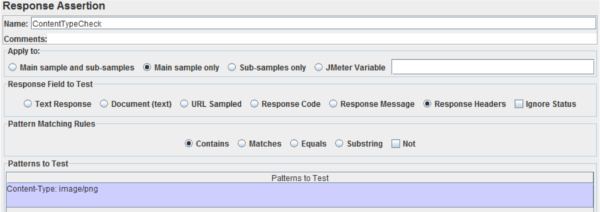
Add the following assertions by right clicking on TestPlan tree node: Response Assertion