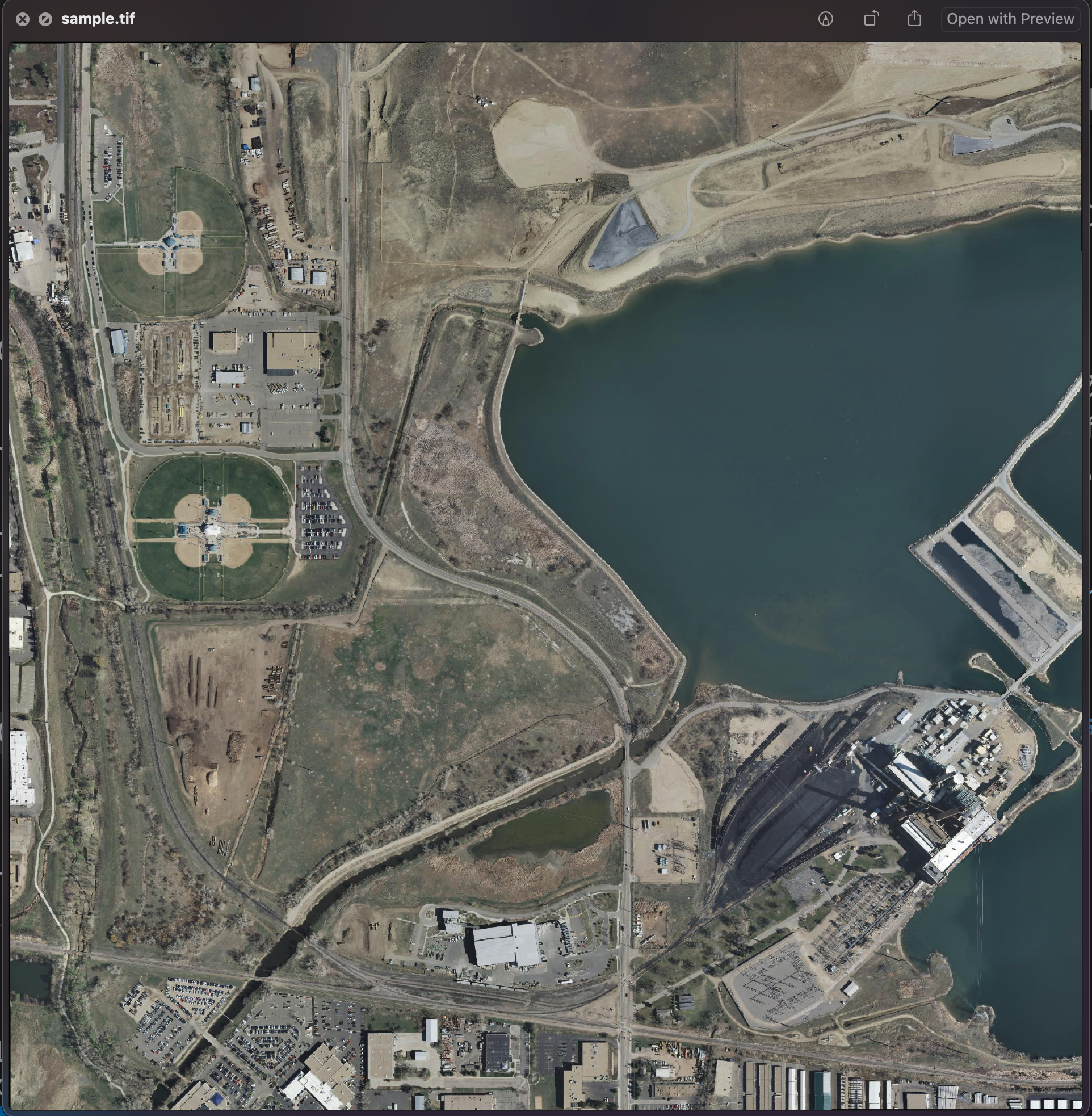
In the Adding a GeoTiff section, a GeoTIFF file has been added to GeoServer as is. However, it’s a common practice to do a preliminary analysis on the available data and, if needed, optimize it since configuring big datasets without proper pre-processing, may result in low performance when accessing them.
In this section, instructions about how to do data optimization will be provided by introducing some GDAL Utilities.
The current version of GDAL libraries used for this training is 3.2.3, released 2021/04/27.
GDAL Programs documentation:
Note
On a Windows machine you can set-up a shell with all GDAL Utilities, running directly the file OSGeo4W.bat under the %TRAINING_ROOT% folder.
A summary of the GDAL Utilities being introduced in this chapter:
Being GeoTIFF a widely adopted geospatial format, it’s useful to get information about the GDAL GeoTIFF’s Driver capabilities using the command:
gdalinfo--formatGTIFF
This is only a trimmed down version of a typical output:
FormatDetails:ShortName:GTiffLongName:GeoTIFFSupports:RasterExtensions:tiftiffMimeType:image/tiffHelpTopic:drivers/raster/gtiff.htmlSupports:SubdatasetsSupports:Open()-Openexistingdataset.Supports:Create()-Createwritabledataset.Supports:CreateCopy()-Createdatasetbycopyinganother.Supports:VirtualIO-eg./vsimem/CreationDatatypes:ByteUInt16Int16UInt32Int32Float32Float64CInt16CInt32CFloat32CFloat64<CreationOptionList><Optionname="COMPRESS"type="string-select"><Value>NONE</Value><Value>LZW</Value><Value>PACKBITS</Value><Value>JPEG</Value><Value>CCITTRLE</Value><Value>CCITTFAX3</Value><Value>CCITTFAX4</Value><Value>DEFLATE</Value></Option><Optionname="PREDICTOR"type="int"description="Predictor Type (1=default, 2=horizontal differencing, 3=floating point prediction)"/><Optionname="DISCARD_LSB"type="string"description="Number of least-significant bits to set to clear as a single value or comma-separated list of values for per-band values"/><Optionname="JPEG_QUALITY"type="int"description="JPEG quality 1-100"default="75"/><Optionname="JPEGTABLESMODE"type="int"description="Content of JPEGTABLES tag. 0=no JPEGTABLES tag, 1=Quantization tables only, 2=Huffman tables only, 3=Both"default="1"/><Optionname="ZLEVEL"type="int"description="DEFLATE compression level 1-9"default="6"/><Optionname="NUM_THREADS"type="string"description="Number of worker threads for compression. Can be set to ALL_CPUS"default="1"/><Optionname="NBITS"type="int"description="BITS for sub-byte files (1-7), sub-uint16_t (9-15), sub-uint32_t (17-31), or float32 (16)"/><Optionname="INTERLEAVE"type="string-select"default="PIXEL"><Value>BAND</Value><Value>PIXEL</Value></Option><Optionname="TILED"type="boolean"description="Switch to tiled format"/><Optionname="TFW"type="boolean"description="Write out world file"/><Optionname="RPB"type="boolean"description="Write out .RPB (RPC) file"/><Optionname="RPCTXT"type="boolean"description="Write out _RPC.TXT file"/><Optionname="BLOCKXSIZE"type="int"description="Tile Width"/><Optionname="BLOCKYSIZE"type="int"description="Tile/Strip Height"/><Optionname="PHOTOMETRIC"type="string-select"><Value>MINISBLACK</Value><Value>MINISWHITE</Value><Value>PALETTE</Value><Value>RGB</Value><Value>CMYK</Value><Value>YCBCR</Value><Value>CIELAB</Value><Value>ICCLAB</Value><Value>ITULAB</Value></Option><Optionname="SPARSE_OK"type="boolean"description="Should empty blocks be omitted on disk?"default="FALSE"/><Optionname="ALPHA"type="string-select"description="Mark first extrasample as being alpha"><Value>NON-PREMULTIPLIED</Value><Value>PREMULTIPLIED</Value><Value>UNSPECIFIED</Value><ValuealiasOf="NON-PREMULTIPLIED">YES</Value><ValuealiasOf="UNSPECIFIED">NO</Value></Option><Optionname="PROFILE"type="string-select"default="GDALGeoTIFF"><Value>GDALGeoTIFF</Value><Value>GeoTIFF</Value><Value>BASELINE</Value></Option><Optionname="PIXELTYPE"type="string-select"><Value>DEFAULT</Value><Value>SIGNEDBYTE</Value></Option><Optionname="BIGTIFF"type="string-select"description="Force creation of BigTIFF file"><Value>YES</Value><Value>NO</Value><Value>IF_NEEDED</Value><Value>IF_SAFER</Value></Option><Optionname="ENDIANNESS"type="string-select"default="NATIVE"description="Force endianness of created file. For DEBUG purpose mostly"><Value>NATIVE</Value><Value>INVERTED</Value><Value>LITTLE</Value><Value>BIG</Value></Option><Optionname="COPY_SRC_OVERVIEWS"type="boolean"default="NO"description="Force copy of overviews of source dataset (CreateCopy())"/><Optionname="SOURCE_ICC_PROFILE"type="string"description="ICC profile"/><Optionname="SOURCE_PRIMARIES_RED"type="string"description="x,y,1.0 (xyY) red chromaticity"/><Optionname="SOURCE_PRIMARIES_GREEN"type="string"description="x,y,1.0 (xyY) green chromaticity"/><Optionname="SOURCE_PRIMARIES_BLUE"type="string"description="x,y,1.0 (xyY) blue chromaticity"/><Optionname="SOURCE_WHITEPOINT"type="string"description="x,y,1.0 (xyY) whitepoint"/><Optionname="TIFFTAG_TRANSFERFUNCTION_RED"type="string"description="Transfer function for red"/><Optionname="TIFFTAG_TRANSFERFUNCTION_GREEN"type="string"description="Transfer function for green"/><Optionname="TIFFTAG_TRANSFERFUNCTION_BLUE"type="string"description="Transfer function for blue"/><Optionname="TIFFTAG_TRANSFERRANGE_BLACK"type="string"description="Transfer range for black"/><Optionname="TIFFTAG_TRANSFERRANGE_WHITE"type="string"description="Transfer range for white"/><Optionname="STREAMABLE_OUTPUT"type="boolean"default="NO"description="Enforce a mode compatible with a streamable file"/><Optionname="GEOTIFF_KEYS_FLAVOR"type="string-select"default="STANDARD"description="Which flavor of GeoTIFF keys must be used"><Value>STANDARD</Value><Value>ESRI_PE</Value></Option><Optionname="GEOTIFF_VERSION"type="string-select"default="AUTO"description="Which version of GeoTIFF must be used"><Value>AUTO</Value><Value>1.0</Value><Value>1.1</Value></Option></CreationOptionList><OpenOptionList><Optionname="NUM_THREADS"type="string"description="Number of worker threads for compression. Can be set to ALL_CPUS"default="1"/><Optionname="GEOTIFF_KEYS_FLAVOR"type="string-select"default="STANDARD"description="Which flavor of GeoTIFF keys must be used (for writing)"><Value>STANDARD</Value><Value>ESRI_PE</Value></Option><Optionname="GEOREF_SOURCES"type="string"description="Comma separated list made with values INTERNAL/TABFILE/WORLDFILE/PAM/NONE that describe the priority order for georeferencing"default="PAM,INTERNAL,TABFILE,WORLDFILE"/><Optionname="SPARSE_OK"type="boolean"description="Should empty blocks be omitted on disk?"default="FALSE"/></OpenOptionList>Othermetadataitems:LIBGEOTIFF=1700LIBTIFF=LIBTIFF,Version4.3.0Copyright(c)1988-1996SamLefflerCopyright(c)1991-1996SiliconGraphics,Inc.
From the above list of create options it’s possible to determine the main GeoTIFF Driver’s writing capabilities:
COMPRESS: customize the compression to be used when writing output data
JPEG_QUALITY: specify a quality factor to be used by the JPEG compression
TILED: When set to YES it allows to tile output data
BLOCKXSIZE, BLOCKYZISE: Specify the Tile dimension width and Tile dimension height
PHOTOMETRIC: Specify the photometric interpretation of the data
PROFILE: Specify the GeoTIFF profile to be used (some profiles only support a minimal set of TIFF Tags while some others provide a wider range of Tags)
BIGTIFF: Specify when to write data as BigTIFF (A TIFF format which allows to break the 4GB Offset boundary)
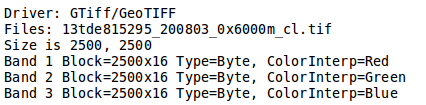
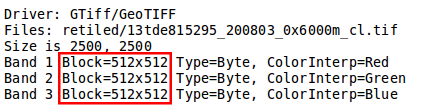
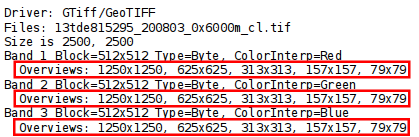
Check the Block info as well as the Overviews info if present.
Block: It represents the internal tiling. Notice that the sample dataset has tiles made of 16 rows having width equals to the full image width.
Overviews: It provides information about the underlying overviews. Notice that the sample dataset doesn’t have overviews since the Overviews property is totally missing from the gdalinfo output.
Where the meaning of the main parameters is summarized below:
-ot: allows to specify the output datatype (Make sure that the specified datatype is contained in the Creation Datatypes list of the Writing driver)
-if: specify the driver to use to open the input source. Generally we dont use it because it is automatically detected. But sometimes we can use it to force an incorrect detection of the format.
-of: specify the desired output format (GTIFF is the default value)
-strict: Don’t be forgiving of mismatches and lost data when translating to the output format.
-b: allows to specify an input band to be written in the output file. (Use multiple -b option to specify more bands)
-r: resampling method:
nearest: applies a nearest neighbour resampler
average: computes the average of all non-NODATA contributing pixels
bilinear: applies a bilinear convolution kernel
cubic: applies a cubic convolution kernel
cubicspline: applies a B-Spline convolution kernel
lanczos: applies a Lanczos windowed sinc convolution kernel
mode: selects the value which appears most often of all the sampled points
-mask: allows to specify an input band to be write an output dataset mask band.
-expand: allows to expose a dataset with 1 band with a color table as a dataset with 3 (rgb) or 4 (rgba) bands. The (gray) value allows to expand a dataset with a color table containing only gray levels to a gray indexed dataset.
-outsize: allows to set the size of the output file in terms of pixels and lines unless the % sign is attached in which case it’s as a fraction of the input image size.
-unscale: allows to apply the scale/offset metadata for the bands to convert from scaled values to unscaled ones.
-scale: allows to rescale the input pixels values from the range src_min to src_max to the range dst_min to dst_max. (If omitted the output range is 0 to 255. If omitted the input range is automatically computed from the source data).
-srcwin: allows to select a subwindow from the source image in terms of xoffset, yoffset, width and height
-projwin: allows to select a subwindow from the source image by specifying the corners given in georeferenced coordinates (expressed using the SRS of the dataset or the SRS defined with the option -projwin_srs).
-projwin_srs: Specifies the SRS to use with the coordinates given with the -projwin option
-a_srs: allows to override the projection for the output file. The srs_def may be any of the usual GDAL/OGR forms, complete WKT, PROJ.4, EPSG:n or a file containing the WKT.
-a_ullr: allows to assign/override the georeferenced bounds of the output file.
-a_nodata: allows to assign a specified nodata value to output bands.
-gcp: Add the indicated ground control point(<pixel> <line> <easting> <northing>) to the destination dataset. This option may be provided multiple times
-colorinterp: Override the color interpretation of all specified bands. For example -colorinterp red,green,blue,alpha to define a 4 band output dataset
-co: allows to set a creation option in the form “NAME=VALUE” to the output format driver. (Multiple -co options may be listed)
-mo: allows to set metadata key/value on the output dataset.
-stats: allows to get statistics (min, max, mean, stdDev) for each band
src_dataset: is the source dataset name. It can be either file name, URL of data source or subdataset name for multi*-dataset files
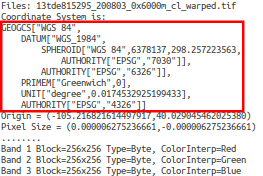
This utility allows to warp and reproject a dataset. The following steps provide instructions to reproject the aerial dataset (which has “EPSG:26913” coordinate reference system) to WGS84 (“EPSG:4326”).
This utility allows to mosaic set of images together, given the fact that all images belongs to same coordinates system and matching number of bands. Images might be overlapping, in that case last image will be copied over earlier one.
Where the meaning of the main parameters is summarized below:
-tileindex: allows to specify value as the tile index field, instead of the default value which is ‘location’.
-resolution {highest|lowest|average|user}: allows to specify resolution of all input files if they are not same, the -resolution flag enables the user to control the way the output resolution is computed. highest will pick the smallest values of pixel dimensions within the set of source rasters. lowest will pick the largest values of pixel dimensions within the set of source rasters. average is the default and will compute an average of pixel dimensions within the set of source rasters. user must be used in combination with the -tr (to set target resolution) option to specify the target resolution.
-te xmin ymin xmax ymax: this allows user to set extent of VRT file
-addalpha : this allows user to add alpha mask band to the VRT when the source raster have none
-b :Using this option user can select an input <band> to be processed. Bands are numbered from 1. If input bands not set all bands will be added to vrt
-sd :This allows user to select subdataset number (starting from 1) If exists in input dataset
-a_srs :This allows users Override the projection for the output file.
-r {nearest (default),bilinear,cubic,cubicspline,lanczos,average,mode} : This allows users to select a resampling algorithm.
-input_file_list :To specify a text file with an input filename on each line
-q : This disable the progress bar on the console
-overwrite : allowes user to overwrite VRT if already exists
gdalbuildvrt - Building a VRT from a list of sample dataset
Run:
Linux:
cd $TRAINING_ROOT/data/user_data

gdalbuildvrt aerial_index.vrt aerial/*.tif
 0...10...20...30...40...50...60...70...80...90...100 - done.
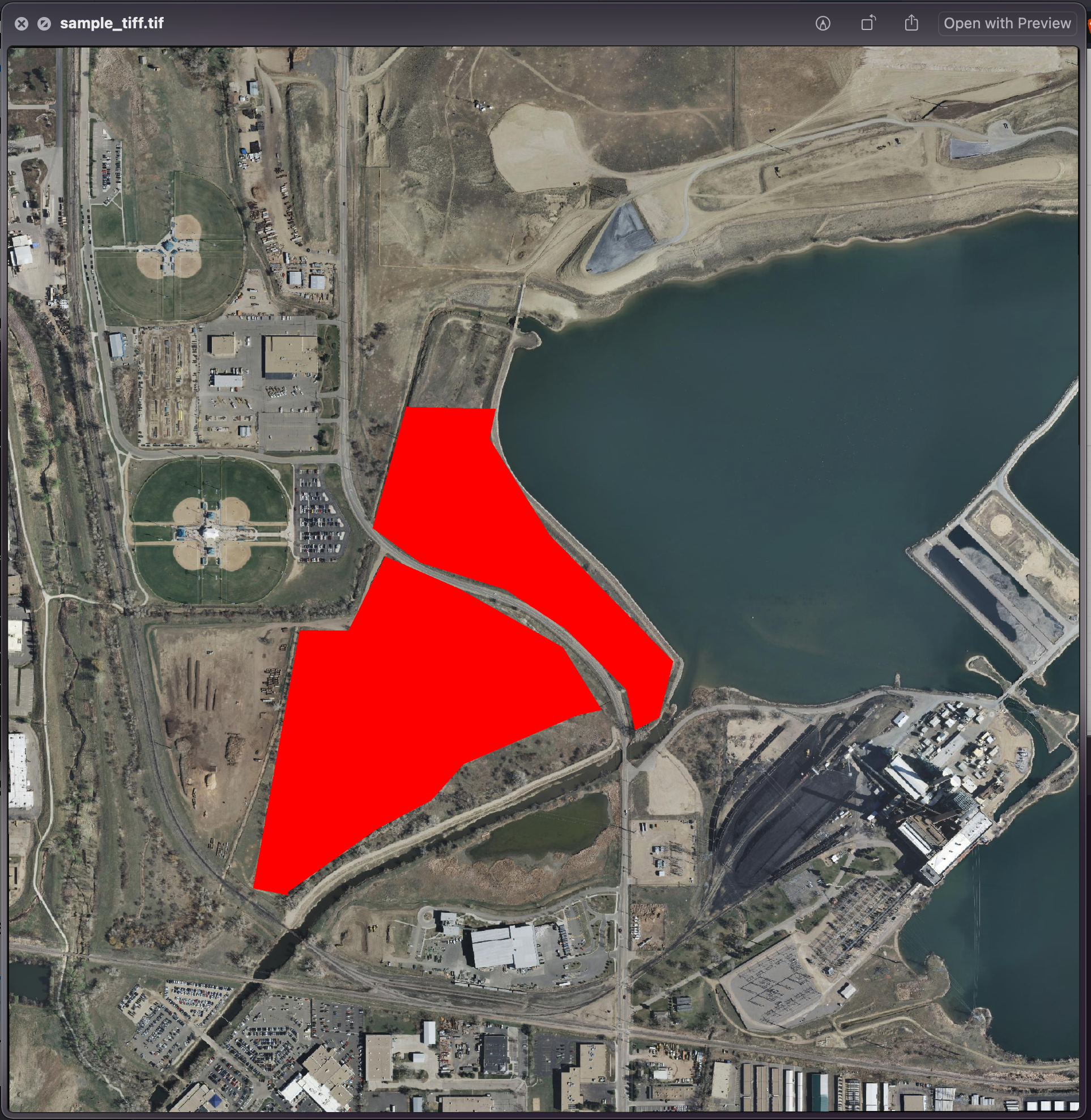
This will create sample_tiff.tif file with burned geometry with given band values
gdal also has python files created for specific operations. e.g. gdal_merge.py,gdal2tiles.py, etc.
In order to use these files, user must have python environment setup done.
Where the meaning of the main parameters is summarized below:
-xyz: This parameter allows users to generate XYZ tiles (OSM Slippy Map standard) instead of TMS. In the default mode (TMS), tiles at y=0 are the southern-most tiles, whereas in XYZ mode (used by OGC WMTS too), tiles at y=0 are the northern-most tiles.
-z: allows user to select zoom level ranges. e.g. ‘3-6’
-\-processes : allows given number of processes run parallel, to speed-up the computation.
-k : This allows user to generate KML
-w: This allows user to generate web viewer for all, google, openlayers, leaflet, mapml, none map clients
This utility allows user to edit in place various information of an existing GDAL dataset. It only works with raster formats that support update access.
Moreover, depending on the format, older values of the updated information might still be found in the file in a ghost state.