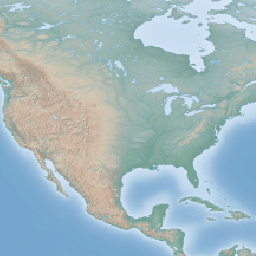
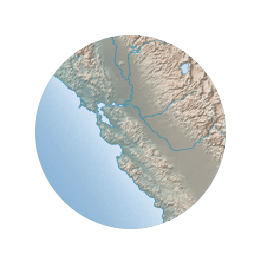
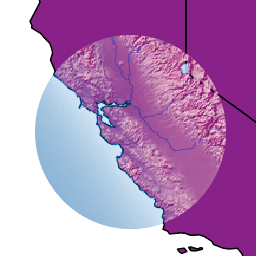
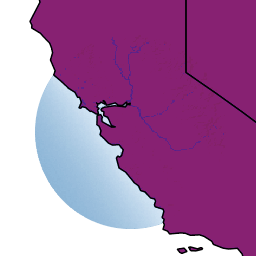
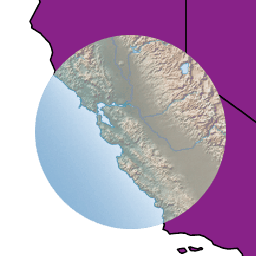
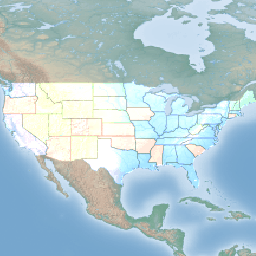
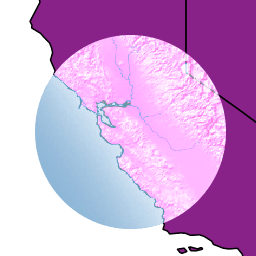
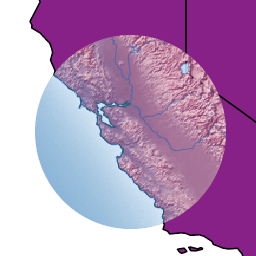
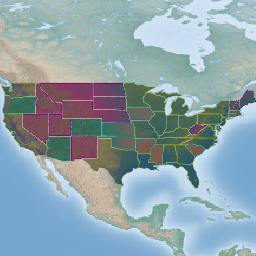
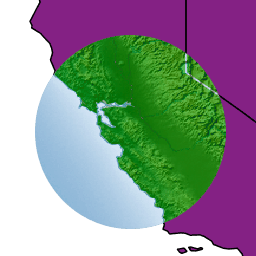
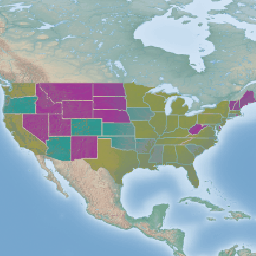
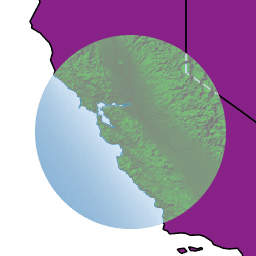
This section shows how GeoServer is able to perform color blending and compositing, either between feature type styles or by associating blending operations with each symbolizer.
Either set of operations allows one to control how two overlapping layers/symbols are merged together to form a final map (as opposed to the normal behavior of just stacking images on top of each other).
This section will use the following definitions for the common terms “source” and “destination”:
Source: Image currently being drawn on top of the map.
Destination: Background image that the source image is being drawn on.
Blending against symbolizers causes exceptions inside the JDK when using OpenJDK. The issue is known and has been reportedly fixed, but only in OpenJDK 9.
One way to get around this issue with OpenJDK 7/8 is to install the Marlin renderer. This replaces the OpenJDK core renderer and does not suffer from the same issue.
This will tell the rendering engine to use that FeatureTypeStyle as the destination and will compose all subsequent FeatureTypeStyle/Layers on top of it until another base is found. Once the full set of layers against a base is composed, then the base itself will be composed against the next set of composed layers using its own compositing operator, if present.
Without this setting, the destination will be the full stack of all previous FeatureTypeStyles and layers drawn before the current one. This can be limiting for two reasons:
It limits the usefulness of alpha-composite masking operations
It breaks the WMS model, where the client can decide freely how to stack layers (the desired compositing effects will be achieved only when a certain stack of layers is used)
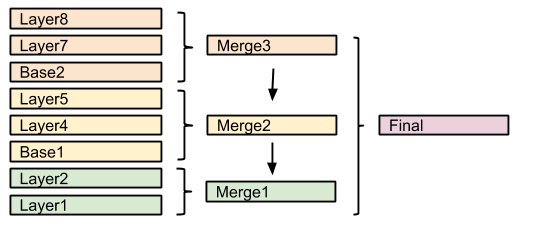
Consider the following example:
In this example, the first two layers are drawn on top of each other, forming “Merge1”.
The third layer is a composite base, as such it won’t be merged on top of the already drawn map immediately, but it will be drawn to an off-screen buffer, and layer 4 and 5 will be drawn/composited on top of it. Once that happens, “Merge2” is ready, and gets drawn on top of “Merge1”.
The next layer is another base, so “Base2” will be again drawn to an off-screen buffer, and layer 7 and 8 will be drawn/composited on top of it, forming Merge3. Once Merge3 is ready, it will be drawn/composited on top of the already fused Merge1/Merge2, generating the final map.
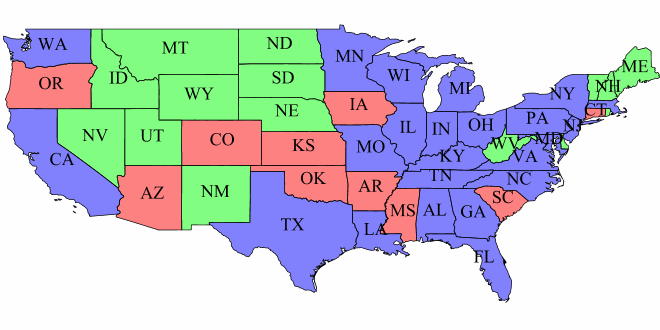
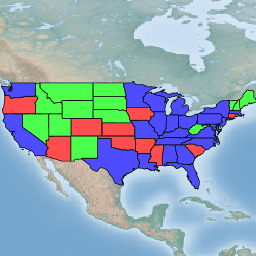
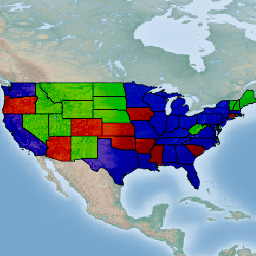
Let’s say we want to draw the topp:states layer so that the polygons are not filled with the population keyed colors, but only an inner border inside the polygon should appear, leaving the internal fully transparent.
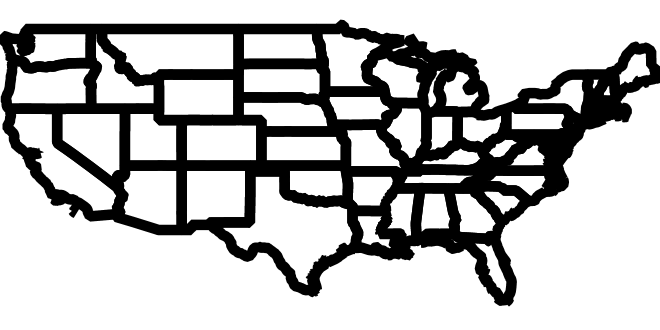
Using alpha blending, this can be achieved by creating a mask around the state borders with a thick stroke and then using a “destination-in” alpha compositing.
The SLD will contain three FeatureTypeStyles. The first one would be the standard rules (states colored by population) and the last one will contain the label rules.
The second (middle) one is where the blending will occur:
...
<FeatureTypeStyle><!-- Usual states rules, skipped for brevity --></FeatureTypeStyle><FeatureTypeStyle><Rule><LineSymbolizer><Stroke><CssParametername="stroke-width">10</CssParameter><CssParametername="stroke">#000000</CssParameter></Stroke></LineSymbolizer></Rule><VendorOptionname="composite">destination-in</VendorOption></FeatureTypeStyle><FeatureTypeStyle><!-- The label rules, skipped for brevity --></FeatureTypeStyle>...
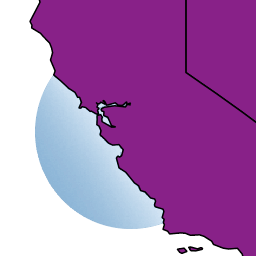
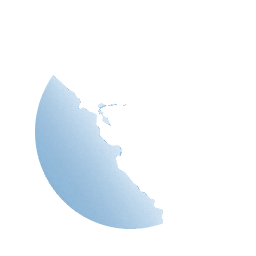
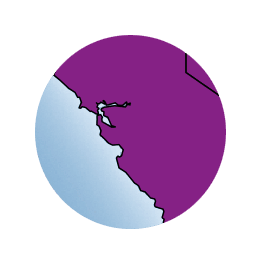
This table summarizes the composition performed:
Destination
Source
Result
Copy the next SLD definition and add it to geoserver as a new style named statesblend:
<?xml version="1.0" encoding="ISO-8859-1"?><StyledLayerDescriptorversion="1.0.0"xmlns="http://www.opengis.net/sld"xmlns:ogc="http://www.opengis.net/ogc"xmlns:xlink="http://www.w3.org/1999/xlink"xmlns:xsi="http://www.w3.org/2001/XMLSchema-instance"xmlns:gml="http://www.opengis.net/gml"xsi:schemaLocation="http://www.opengis.net/sld"><NamedLayer><Name>USAstatespopulation</Name><UserStyle><Name>population</Name><Title>PopulationintheUnitedStates</Title><Abstract>AsamplefilterthatfilterstheUnitedStatesintothree
categoriesofpopulation,drawnindifferentcolors</Abstract><FeatureTypeStyle><Rule><Name>test</Name><Title><2M</Title><ogc:Filter><ogc:PropertyIsLessThan><ogc:PropertyName>PERSONS</ogc:PropertyName><ogc:Literal>2000000</ogc:Literal></ogc:PropertyIsLessThan></ogc:Filter><PolygonSymbolizer><Fill><!-- CssParameters allowed are fill (the color) and fill-opacity --><CssParametername="fill">#4DFF4D</CssParameter><CssParametername="fill-opacity">0.7</CssParameter></Fill></PolygonSymbolizer></Rule><Rule><Title>2M-4M</Title><ogc:Filter><ogc:PropertyIsBetween><ogc:PropertyName>PERSONS</ogc:PropertyName><ogc:LowerBoundary><ogc:Literal>2000000</ogc:Literal></ogc:LowerBoundary><ogc:UpperBoundary><ogc:Literal>4000000</ogc:Literal></ogc:UpperBoundary></ogc:PropertyIsBetween></ogc:Filter><PolygonSymbolizer><Fill><!-- CssParameters allowed are fill (the color) and fill-opacity --><CssParametername="fill">#FF4D4D</CssParameter><CssParametername="fill-opacity">0.7</CssParameter></Fill></PolygonSymbolizer></Rule><Rule><Title>>4M</Title><!-- like a linesymbolizer but with a fill too --><ogc:Filter><ogc:PropertyIsGreaterThan><ogc:PropertyName>PERSONS</ogc:PropertyName><ogc:Literal>4000000</ogc:Literal></ogc:PropertyIsGreaterThan></ogc:Filter><PolygonSymbolizer><Fill><!-- CssParameters allowed are fill (the color) and fill-opacity --><CssParametername="fill">#4D4DFF</CssParameter><CssParametername="fill-opacity">0.7</CssParameter></Fill></PolygonSymbolizer></Rule><!-- UNCOMMENT THIS SECTION --><!--VendorOption name="composite">multiply</VendorOption> <VendorOption name="composite-base">true</VendorOption--></FeatureTypeStyle><FeatureTypeStyle><Rule><LineSymbolizer><Stroke><CssParametername="stroke-width">10</CssParameter><CssParametername="stroke">#000000</CssParameter></Stroke></LineSymbolizer></Rule><VendorOptionname="composite">destination-in</VendorOption></FeatureTypeStyle><FeatureTypeStyle><Rule><Title>Boundary</Title><LineSymbolizer><Stroke><CssParametername="stroke-width">0.2</CssParameter></Stroke></LineSymbolizer><TextSymbolizer><Label><ogc:PropertyName>STATE_ABBR</ogc:PropertyName></Label><Font><CssParametername="font-family">TimesNewRoman</CssParameter><CssParametername="font-style">Normal</CssParameter><CssParametername="font-size">18</CssParameter></Font><LabelPlacement><PointPlacement><AnchorPoint><AnchorPointX>0.5</AnchorPointX><AnchorPointY>0.5</AnchorPointY></AnchorPoint></PointPlacement></LabelPlacement><VendorOptionname="partials">false</VendorOption></TextSymbolizer></Rule></FeatureTypeStyle></UserStyle></NamedLayer></StyledLayerDescriptor>
Note
The CSS equivalent of this style is the following
*{z-index:0;[PERSONS<'2000000']{fill:#4DFF4D;fill-opacity:0.7;};[PERSONS>='2000000'andPERSONS<='4000000']{fill:#FF4D4D;fill-opacity:0.7;};[PERSONS>'4000000']{fill:#4D4DFF;fill-opacity:0.7;};/* UNCOMMENT THIS SECTION *//* composite: 'multiply'; composite-base: 'true'; */}*{z-index:1;stroke:#000000;stroke-width:10;composite:'destination-in';}*{z-index:2;stroke:#000000;stroke-width:0.2;label:[STATE_ABBR];font-family:'Times New Roman';font-style:'normal';font-size:18;font-fill:#000000;label-anchor:0.50.5;}
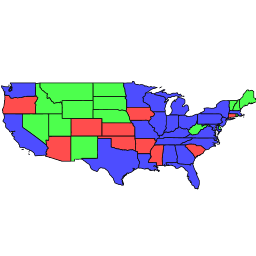
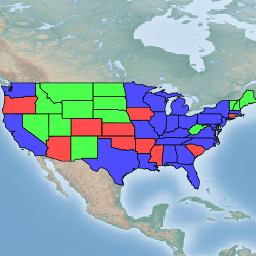
After creating the previous SLD, make the following request:
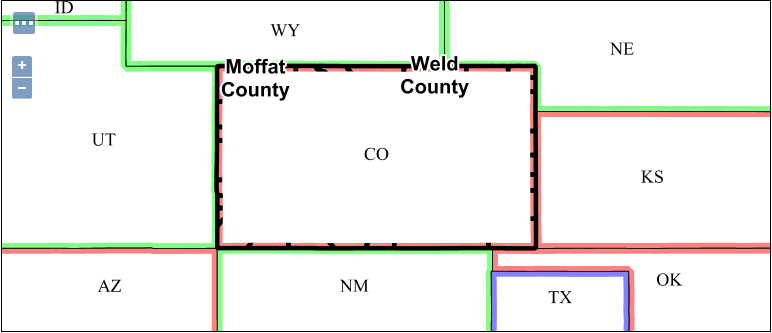
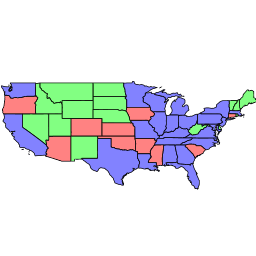
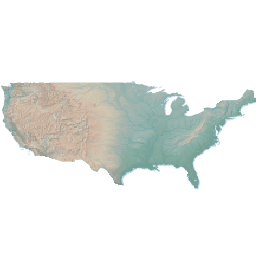
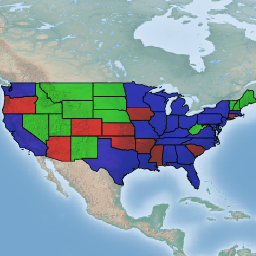
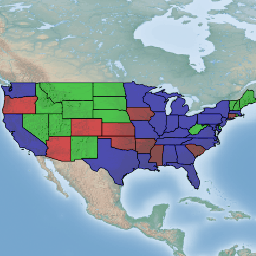
As it can be easily seen the background layer is almost not visible because it has been cut by the mask.
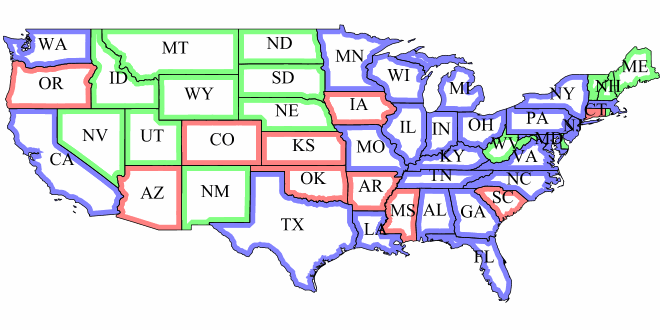
In order to achieve background transparency the first FeatureTypeStyle that draws the polygons (the states themselves) needs to be set as a compositing base, ensuring the mask will only be applied to it.
Navigate to styles in Geoserver and open the previously created SLD statesblend. Locate and change the following lines:
...
<!-- UNCOMMENT THIS SECTION --><!--VendorOption name="composite">multiply</VendorOption><VendorOption name="composite-base">true</VendorOption-->
...
Uncomment composite and composite-base vendor options:
...
<!-- UNCOMMENT THIS SECTION --><VendorOptionname="composite">multiply</VendorOption><VendorOptionname="composite-base">true</VendorOption>
...
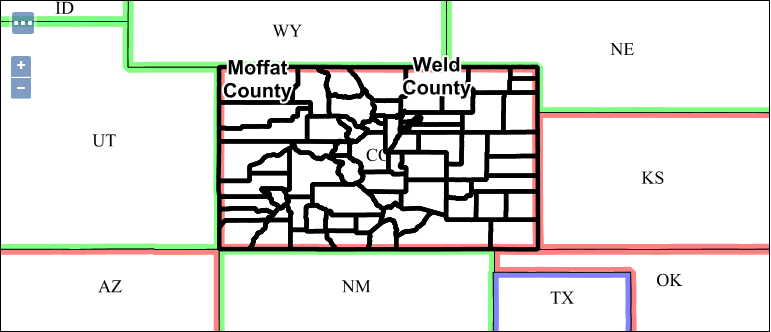
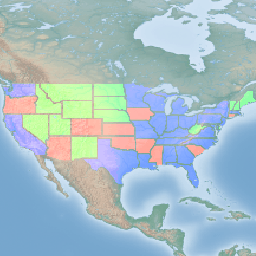
Once done submit the SLD statesblend change and perform again the same previous request and zoom in to Colorado state:
Alpha compositing controls how two images are merged together by using the alpha levels of the two. No color mixing is being performed, only pure binary selection (either one or the other).
Color blending modes mix the colors of source and destination in various ways. Each pixel in the result will be some sort of combination between the source and destination pixels.
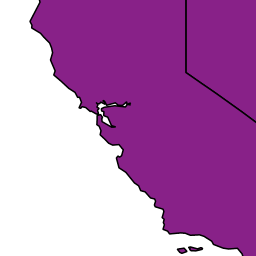
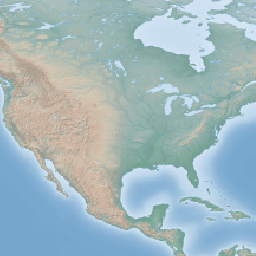
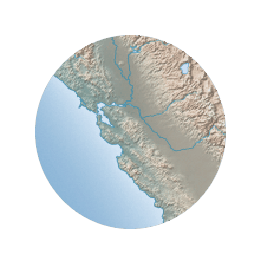
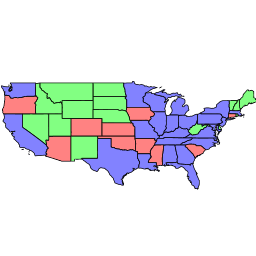
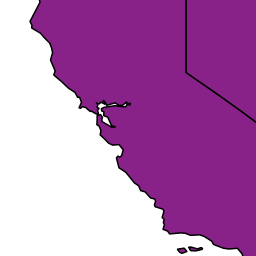
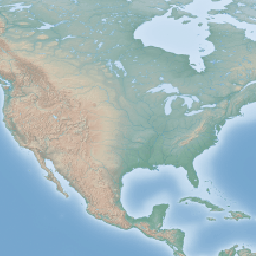
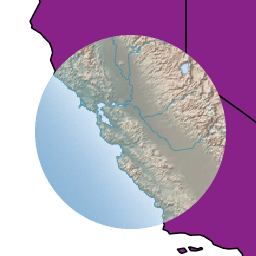
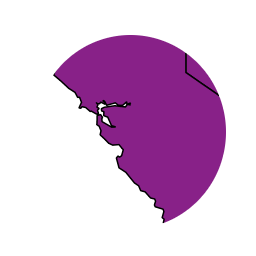
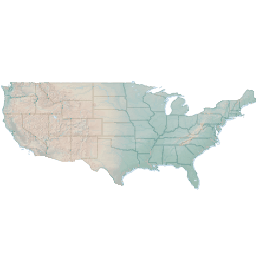
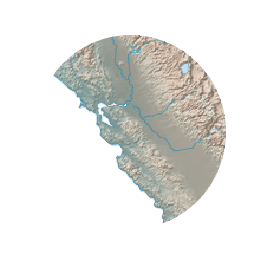
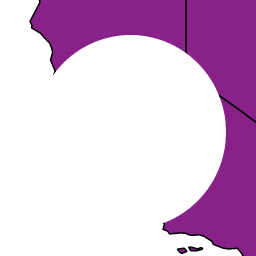
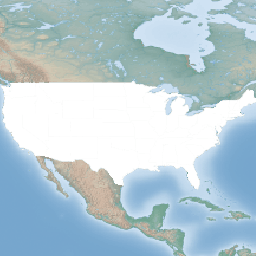
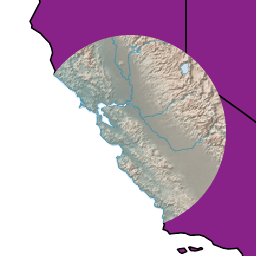
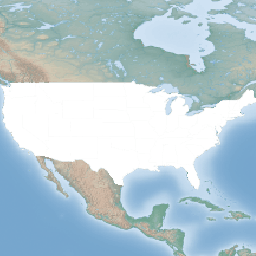
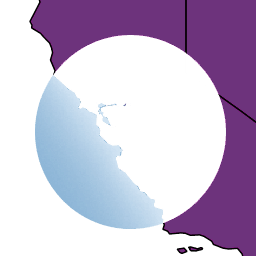
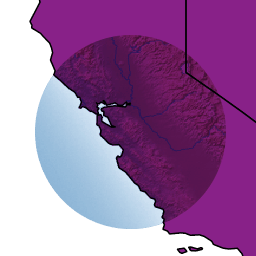
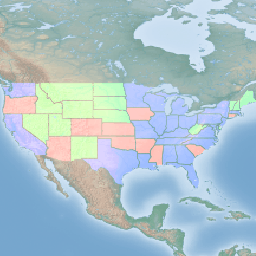
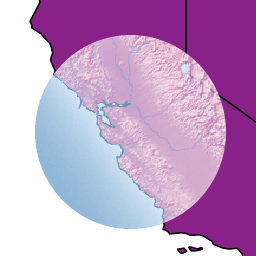
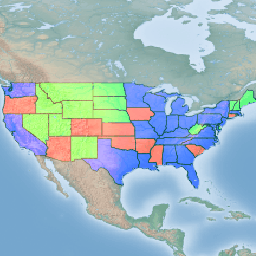
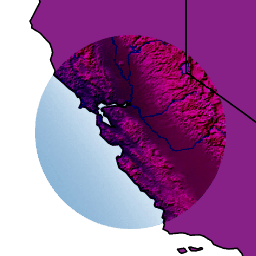
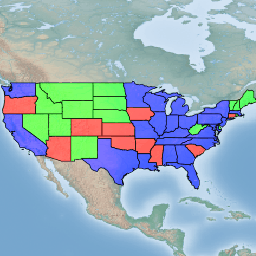
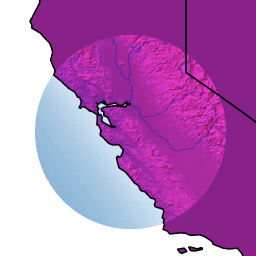
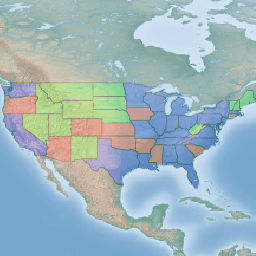
The following page shows the full list of available modes. To aid in comprehension, two source and two destination images will be used to show visually how each mode works:
The source is visible only when overlapping some non-transparent pixel of the destination. This allows the background map to act as a mask for the layer/feature being drawn. Opposite of destination-in.
The destination is retained only when overlapping some non transparent pixel in the source. This allows the layer/feature to be drawn to act as a mask for the background map. Opposite of source-in.
The source color is multiplied by the destination color and replaces the destination. The resulting color is always at least as dark as either the source or destination color. Multiplying any color with black results in black. Multiplying any color with white preserves the original color.
Multiplies the complements of the source and destination color values, then complements the result. The end result color is always at least as light as either of the two constituent colors. Screening any color with white produces white; screening with black leaves the original color unchanged.
The effect is similar to projecting multiple photographic slides simultaneously onto a single screen.
Multiplies (screens) the colors depending on the destination color value. Source colors overlay the destination while preserving its highlights and shadows. The backdrop color is not replaced but is mixed with the source color to reflect the lightness or darkness of the backdrop.